
Create User Account
How to create a user account on the Crewters iOS app
Before you start
Crewters is currently iOS only. Install the app from the App Store or TestFlight invite, then open it on your iPhone.
Create your account
1. Welcome screen
The first time you open Crewters (before you have signed in), you see a short welcome carousel. Tap START to continue.
2. Sign in / register screen
You land on the sign-in screen (language picker at the top, Crewters logo, READY TO PLAY?). New and returning players use the same screen.
Optional: tap the language label at the top to change language (default follows your device; English UK is common).
Choose how you want to create your account:
- Email code — tap ENTER, enter your email, tap Send code, then enter the one-time code and tap Verify code.
Or tap Don't have an account? Register — that starts the same email-code flow. - Google — tap Sign in with Google.
- Apple — tap Sign in with Apple.
There is no separate “create account” form and no browser Auth0 signup page. Sign-in happens in the app (email one-time code, or Apple / Google).
3. Verify email (if asked)
If your email is not verified yet, Crewters shows a verify-email screen. Open the verification link from your inbox, then return to the app and sign in again with your email code or Apple / Google.
4. Finish onboarding
New accounts go through a short onboarding flow (about 10 steps): why you’re here, what matters most, membership choice (trial or continue free), gender, sports, marketing preferences, and your handle. When that finishes, you’re in the app.
What the app looks like
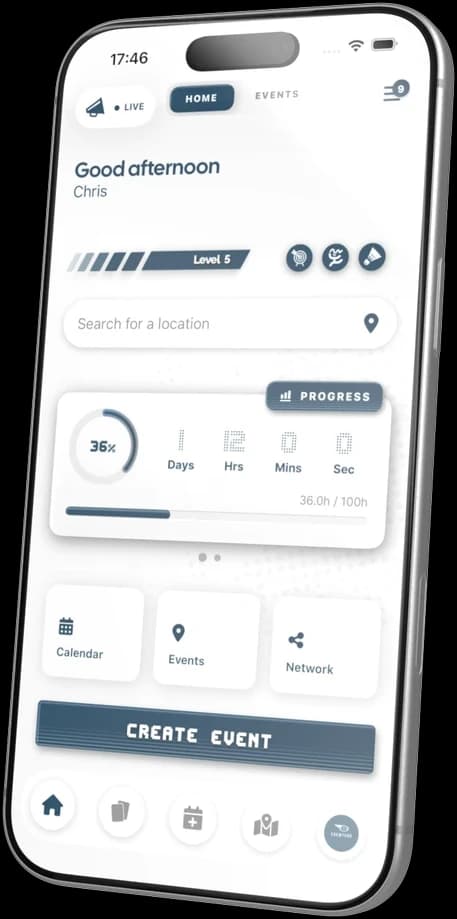
Once you’re signed in, you can explore Home, Events, and the rest of Crewters. The phone below is the last frame of the homepage scroll scrub — the Hub after you’re in:
Any issues: info@crewters.com.